Working on Scrivener Projects on an iPad (OUTMODED): Difference between revisions
m (Video8 moved page Working on Scrivener Projects on an iPad to Working on Scrivener Projects on an iPad (OUTMODED) without leaving a redirect) |
|||
| (5 intermediate revisions by the same user not shown) | |||
| Line 1: | Line 1: | ||
== Warning == | |||
<div class="alert alert-warning">This article was created before Scrivener's iPad app was released. All information here should be considered out of date. It is saved for archival purposes only.</div> | |||
== MS Word == | == MS Word == | ||
| Line 12: | Line 16: | ||
** Save somewhere in the local OneDrive directory, and make sure that folder is being actively synced by the OneDrive app. | ** Save somewhere in the local OneDrive directory, and make sure that folder is being actively synced by the OneDrive app. | ||
* Open the file in MS Word (online, desktop, or iPad version) and make sure that "track changes" is active. | * Open the file in MS Word (online, desktop, or iPad version) and make sure that "track changes" is active. | ||
Scrivener hard-codes the text styling into the Word document. There are no headings or "body" styles assigned to the document. It also puts a page break above the titles by assigning to the style of the title. That means that the page break doesn't show up when the document formatting is revealed. | |||
=== Importing edits back into Scrivener === | === Importing edits back into Scrivener === | ||
| Line 92: | Line 97: | ||
== Other editors == | == Other editors == | ||
* MS OneNote | * '''Outline+''' | ||
* Storyist | ** Pros | ||
*** Supports nested "section groups". | |||
*** Supports a tree view of the project content. | |||
** Cons | |||
*** The combination of sections, section groups, and pages is confusing. | |||
*** The content tree can't be viewed as a whole because individual pages are displayed in a separate area away from the section and section group nodes. | |||
* '''MS OneNote''' | |||
** When using Outline+, OneNote isn't actually necessary. Outline+ saves to the OneDrive location, and saves in a format that OneNote supports. | |||
** Outline+ has the superior editor in terms of viewing the structure of the sections and section groups as a tree. | |||
* '''Storyist''' | |||
** There was some reason why I didn't like Storyist, but I can't remember what it was now. | |||
== Syncing/sharing the Scrivener project on various desktops == | == Syncing/sharing the Scrivener project on various desktops == | ||
On desktop, it is recommended to work on a local copy of a project, and back that project up to a cloud service, e.g. Dropbox. On desktop, backup settings are for individual projects, so it's ok to create a subdirectory within `~/Dropbox/Apps/Scrivener/`. | |||
So for example: | |||
`~/Desktop/local/path/my-project.scriv` (local working copy) > `~/Dropbox/Apps/Scrivener/my-project/my-project.scriv` (cloud backup) | |||
The iPad syncs to the `/Apps/Scrivener/` directory within the Dropbox cloud service. All the projects found there (including in subdirectories) will show up on the Scrivener home screen. | |||
* Scrivener projects are saved in `~/Dropbox/Apps/Scrivener/` | |||
* It is ok to have subdirectories for individual projects, but desktop syncs on a project-by-project basis, while iPad has only one sync setting. | |||
Latest revision as of 15:16, 11 May 2021
Warning[edit]
MS Word[edit]
Considering the problems with StorySkeleton, I opted to export the Scrivener content as a flat file and edit it in MS Word, taking advantage of Microsoft's OneDrive for sharing the edits.
Exporting content from Scrivener[edit]
- MS OneDrive makes the flattened version accessible & synced across Mac, Windows, and iPad with OneDrive apps.
- MS Word can edit the flattened version (in .docx format) and can track any edits, so it should be obvious what needs to be updated in Scrivener once I'm back at the desktop.
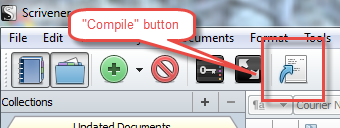
- Scrivener > Select "Draft" folder under the Binder tab > click the Compile button.
- Format As: Custom
- Compile For: Word Document (.docx)
- Save somewhere in the local OneDrive directory, and make sure that folder is being actively synced by the OneDrive app.
- Open the file in MS Word (online, desktop, or iPad version) and make sure that "track changes" is active.

Scrivener hard-codes the text styling into the Word document. There are no headings or "body" styles assigned to the document. It also puts a page break above the titles by assigning to the style of the title. That means that the page break doesn't show up when the document formatting is revealed.
Importing edits back into Scrivener[edit]
View the changes since the flattened content was exported from Scrivener.
Manually update the cards in Scrivener.
Overview[edit]
Instructions for syncing work done in Scrivener on the desktop with work on an iPad.
N.B. This wouldn't be necessary if Scrivener had an iPad app that could load desktop projects.
Editing projects with StorySkeleton[edit]
Problems[edit]
I believe StorySkeleton becomes unstable when "stacks" are nested more than one deep.
- I could not export the Natural World 5 project in .scriv format, only .opml format.
- When I try to stack two stacks together, StorySkeleton wants to merge them, i.e. put all the cards in both stacks into a single stack.
- Basically two stacks can't be merged as siblings. One will be the parent, and the other will be nested inside.
- The first stack selected will ultimately be the child.
- Tap the blue arrows button.

- Swipe to the stack that will be the parent stack.
- Tap the "stack" button at the bottom of the screen.
- Choose "Embed Stack"
- Here's pretty much a show-stopper bug:
- Stack two stacks together as described above.
- Now one stack is the parent, with some number of cards inside of it.
- The other stack is also nested inside the parent.
- Go to the child stack and click the blue arrows.
- Click the "unstack" button.
- Result: StorySkeleton crashes, and after relaunching StorySkeleton and opening the project, the child stack is now missing entirely from the project.

Exporting the Scrivener desktop project[edit]
From Scrivener desktop, with a folder within the Scrivener selected: File > Export > OPML or Mindmap File
- Location: Local Dropbox folder >
/Apps/StorySkeleton (1)/Export/ - Save As: Opml(.opml)
- Content: Titles and Synopses
Importing the Scrivener project into the StorySkeleton iPad app[edit]
When StorySkeleton starts up it will prompt for New, Open, or Import.
- Import (link Dropbox account if necessary)
- All available .opml files will be displayed. These are all the .opml files found in the
/Apps/StorySkeleton (1)/Export/folder within the Dropbox repository.
Exporting the StorySkeleton project[edit]

- Click on the skull icon.

- Click the share button.

- There is an option to export in native .scriv format, but for me this always crashes.
- If the native .scriv export doesn't work, export as .opml.
- Choose the Send to Dropbox option.
- autosave: on.


Exporting as .scriv[edit]
When exporting in .scriv format, StorySkeleton saves it as a .zip file in the Dropbox folder, probably as a way to manage the way that Scrivener saves each of its cards as a separate file in the project folder.
The exported .scriv project has to be unzipped before importing it into Scrivener of course.
Importing changes made in StorySkeleton back into the Scrivener project[edit]
- Open the project in Scrivener.
- Select "Draft" in the Binder.
- Import > OPML or Mindmap File...
- Import File:
[Dropbox folder]/Apps/StorySkeleton (1)/Export/[storyskeleton_export].opml - Import notes into: Main Text (with Synopsis)
- Import File:
The result will be a new folder in the binder with the name of the .ompl file, with a tree underneath reflecting the tree created in StorySkeleton.
With the .opml import all of the nodes are imported as flat cards. They have to be manually converted to folders (right click on node > Convert to Folder).
Other editors[edit]
- Outline+
- Pros
- Supports nested "section groups".
- Supports a tree view of the project content.
- Cons
- The combination of sections, section groups, and pages is confusing.
- The content tree can't be viewed as a whole because individual pages are displayed in a separate area away from the section and section group nodes.
- Pros
- MS OneNote
- When using Outline+, OneNote isn't actually necessary. Outline+ saves to the OneDrive location, and saves in a format that OneNote supports.
- Outline+ has the superior editor in terms of viewing the structure of the sections and section groups as a tree.
- Storyist
- There was some reason why I didn't like Storyist, but I can't remember what it was now.
Syncing/sharing the Scrivener project on various desktops[edit]
On desktop, it is recommended to work on a local copy of a project, and back that project up to a cloud service, e.g. Dropbox. On desktop, backup settings are for individual projects, so it's ok to create a subdirectory within ~/Dropbox/Apps/Scrivener/.
So for example:
~/Desktop/local/path/my-project.scriv (local working copy) > ~/Dropbox/Apps/Scrivener/my-project/my-project.scriv (cloud backup)
The iPad syncs to the /Apps/Scrivener/ directory within the Dropbox cloud service. All the projects found there (including in subdirectories) will show up on the Scrivener home screen.
- Scrivener projects are saved in
~/Dropbox/Apps/Scrivener/ - It is ok to have subdirectories for individual projects, but desktop syncs on a project-by-project basis, while iPad has only one sync setting.