Recording Vinyl With SoundForge: Difference between revisions
Jump to navigation
Jump to search
No edit summary |
No edit summary |
||
| Line 2: | Line 2: | ||
* Configure USB recording | * Configure USB recording | ||
** '''Start Menu''' > '''Control Panel''' > '''Hardware and Sound''' > '''Sound''' | ** '''Start Menu''' > '''Control Panel''' > '''Hardware and Sound''' > '''Sound''' | ||
*** '''Recording''' tab<br />[[file:Usb-recording-01.png] | *** '''Recording''' tab<br />[[file:Usb-recording-01.png]] | ||
*** With '''Microphone''' selected as the '''recording device''', click the '''Properties''' button | *** With '''Microphone''' selected as the '''recording device''', click the '''Properties''' button | ||
**** '''Advanced''' tab: | **** '''Advanced''' tab: | ||
Revision as of 04:36, 26 August 2014
- Connect the turntable to the computer using a USB cable.
- Configure USB recording
- Start Menu > Control Panel > Hardware and Sound > Sound
- Recording tab
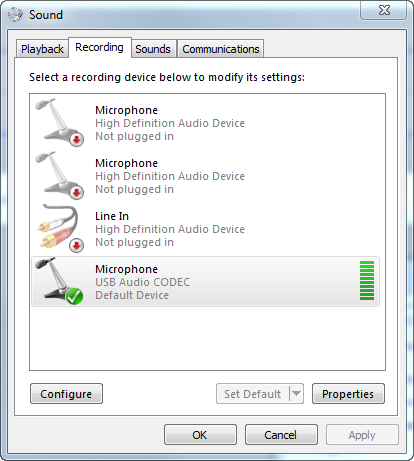
- With Microphone selected as the recording device, click the Properties button
- Advanced tab:
- Select Microphone: USB Audio CODEC
- With USB Audio CODEC selected, click Properties
- Default format: 2 channel, 16 bit, 44100 Hz
- Levels tab:
- Tweak levels until the audio isn’t peaking
- Listen tab:
- Listen to this device: checked
- Playback through this device: Default playback device
- Advanced tab:
- Recording tab
- Start Menu > Control Panel > Hardware and Sound > Sound > Playback tab
- Set “Speakers: High Definition Audio Device” as the default.
- Start Menu > Control Panel > Hardware and Sound > Sound
- Open Sound Forge.
- Options > Preferences > Audio tab
- Audio device type: Windows Classic Wave Driver
- If there’s an option, make sure the USB microphone is used as the recording device.
When recording through USB it’s not possible to monitor the sound being recorded through the computer.To monitor the audio while recording, connect the stereo RCA to a second device and monitor through that.
- Options > Preferences > Audio tab
