In a scenario where two documents have the same set of form fields,
* Open the source document
** '''Tools''' > '''Forms''' panel > '''Edit'''
** Either select the form fields in the content window with the mouse, or select the form fields from the list in the Forms panel.
** Right click in the Content window > '''Copy'''
* Open the destination document.
** '''Tools''' > '''Forms''' panel > '''Edit'''
** Navigate to the target page.
** Right click in the Content window > '''Paste'''
Document what content cues influence how the form fields are added to the document.
==== How Acrobat locates form fields based on content ====
TODO: Document what content cues influence how the form fields are added to the document.
* For example, text followed by a straight line will cause a textbox to be added to the form.
* For example, text followed by a straight line will cause a textbox to be added to the form.
* An rectangular outline will cause a multi-line textbox to be added, but a blank area will be passed over.
* An rectangular outline will cause a multi-line textbox to be added, but a blank area will be passed over.
Document options for textboxes.
=== Textbox options ===
==== Multi-line (textarea) ====
* ''with field selected'' > '''Properties''' (Ctrl+I) > '''Options''' tag > '''Multi-line''': checked
==== Comb ====
The '''Comb''' setting splits the textbox into evenly spaced boxes, allowing only one character to be entered in each box.
* ''with field selected'' > '''Properties''' (Ctrl+I) > '''Options''' tag
** Deselect all other options (otherwise '''Comb''' won't be available).
** '''Comb of''' number of characters to allow in the textbox.
=== Checkbox options ===
==== Checkbox appearance ====
Checkboxes seem to constructed with a border, padding inside the border, and a fill area.
When the checkbox is selected, there is always padding between the border and the box used to indicate that the checkbox has been selected.
The style of the check mark can be controlled with '''Properties''' > '''Appearance''' tab > '''Text''' > '''Font Size''', which will control the size of the box displayed when the checkbox is selected, and ''Properties''' > '''Appearance''' tab > '''Text''' > '''Text Color''' which will control the color of that box.
==== Checkbox groups ====
It doesn't appear possible to group checkbox form fields together. If they have the same '''Name''' they will be have like radio buttons, i.e. only one option out of all options with the same name can be selected at one time.
=== Radio buttons ===
To create a group of radio buttons give the radio buttons the same '''Name''', with unique '''Export Values'''.
''Note that radio buttons can be round or square (the appearance of checkboxes) but it's the '''Name''' value that determines if they act like radio buttons, i.e. only one option in a group can be selected at a time.''
** field name: '''General''' tab > '''Name'''<br />''Note that form fields that share a '''Name''' will all have the same '''Tooltip''' value, i.e. when the tooltip value is changed for one of the options, it will update the tooltip value for all the other options.''
* Both the '''Tooltip''' and '''Export Value''' are read out for checkboxes in a group. Best to make the tooltip as concise as possible if it will be read out multiple times.
=== Clearing form values ===
If a PDF is saved with input in textboxes, or with checkboxes or radio buttons selected, those values will persist the next time it's opened in Acrobat Reader.
* Mutli-line inputs.
To clear form values (radio buttons can't be cleared with clicking once they are selected), '''Tools''' pane > '''Forms''' > '''More Form Options''' > '''Clear Form'''.
** Drag form fields to the appropriate place in the list.
** '''''Note''' that changing the position of a field in the list will remove its tag from from the tags tree. After a field's tab position is changed, re-tag it with '''tags''' pane > '''options''' menu > '''Find...'''. (See [[#Form_fields_must_be_represented_by_tagged_annotations_in_the_tags_tree|Untagged annotations]])''
* Document tab order
** When the Accessibility Check is run after the field tab order has been changed, an error will be thrown under '''Accessibility Checker''' > '''Page Content''' > '''Tab Order'''
** Expand the node, right click on the error message and select '''Fix'''.
== Form field alternate text ==
== Form field alternate text ==
Line 53:
Line 113:
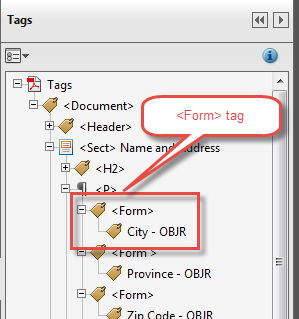
* Drag the tagged annotation into the new `<nowiki><Form></nowiki>` tag.
* Drag the tagged annotation into the new `<nowiki><Form></nowiki>` tag.
** Enter JavaScript into '''Custom Format Script''' and/or '''Custom Keystroke Script''' fields.
<p class="alert-warning">To set custom scripts, it's necessary to access the form field's properties by right clicking on the field itself in the content view as opposed to selecting the field in the Forms pane. When the field is selected through the Form pane, edits in those custom script fields won't save, and it's impossible to change the format to "custom", even through the same dialog is displayed.</p>
[[file:Acrobat-form-field-custom-format-dialog.png|thumb|left|form field format dialog]]
== Reference ==
* [http://www.adobe.com/de/accessibility/products/acrobat/pdfs/acrobat-x-creating-accessible-pdf-forms.pdf Acrobat X Pro Accessible Forms and Interactive Documents] (Adobe.com)
Checkboxes seem to constructed with a border, padding inside the border, and a fill area.
When the checkbox is selected, there is always padding between the border and the box used to indicate that the checkbox has been selected.
The style of the check mark can be controlled with Properties' > Appearance tab > Text > Font Size, which will control the size of the box displayed when the checkbox is selected, and Properties > Appearance tab > Text > Text Color which will control the color of that box.
It doesn't appear possible to group checkbox form fields together. If they have the same Name they will be have like radio buttons, i.e. only one option out of all options with the same name can be selected at one time.
To create a group of radio buttons give the radio buttons the same Name, with unique Export Values.
Note that radio buttons can be round or square (the appearance of checkboxes) but it's the Name value that determines if they act like radio buttons, i.e. only one option in a group can be selected at a time.
Tools pane > Forms > Edit Fields > Fields > select a field
right click > Properties (Ctrl+I)
field name: General tab > Name Note that form fields that share a Name will all have the same Tooltip value, i.e. when the tooltip value is changed for one of the options, it will update the tooltip value for all the other options.
export value: Options tab > Export Value
Both the Tooltip and Export Value are read out for checkboxes in a group. Best to make the tooltip as concise as possible if it will be read out multiple times.
If a PDF is saved with input in textboxes, or with checkboxes or radio buttons selected, those values will persist the next time it's opened in Acrobat Reader.
To clear form values (radio buttons can't be cleared with clicking once they are selected), Tools pane > Forms > More Form Options > Clear Form.
Form field tab order must match the flow of the document: left to right, then top to bottom, with the exception of columns where it makes more sense to go from the top to the bottom of the leftmost column, then return to the top of the next column to the right.
Tools pane > Forms > Edit > Fields tab
Drag form fields to the appropriate place in the list.
Note that changing the position of a field in the list will remove its tag from from the tags tree. After a field's tab position is changed, re-tag it with tags pane > options menu > Find.... (See Untagged annotations)
Document tab order
When the Accessibility Check is run after the field tab order has been changed, an error will be thrown under Accessibility Checker > Page Content > Tab Order
Expand the node, right click on the error message and select Fix.
Each form field must have alternate text that accurately describes the data to be collected by the field.
Tools pane > Forms > Edit
Form fields can be selected either in the document content area, or under the Fields tab.
With a field selected: right click > Properties (Ctrl+i)
Name is the label of the field. If a tooltip value is provided, this can be a code containing abbreviations, underscores and/or numbers that wouldn't necessarily make sense if it were read out loud. The Name field can contain spaces and special characters.
Tooltip, if provided, is the text that is read out loud for the form field. As such the tooltip value should be easily understood. If a tooltip value is not provided, a screen reader would typically fall back on the Name value.
Enter JavaScript into Custom Format Script and/or Custom Keystroke Script fields.
To set custom scripts, it's necessary to access the form field's properties by right clicking on the field itself in the content view as opposed to selecting the field in the Forms pane. When the field is selected through the Form pane, edits in those custom script fields won't save, and it's impossible to change the format to "custom", even through the same dialog is displayed.