(Created page with "== Creating forms == '''Tools''' pane > '''Forms''' > '''Create''' * From Existing Document * Current Document == Form field tab order == Form field tab order must match th...")
Document what content cues influence how the form fields are added to the document.
For example, text followed by a straight line will cause a textbox to be added to the form.
An rectangular outline will cause a multi-line textbox to be added, but a blank area will be passed over.
Document options for textboxes.
Mutli-line inputs.
Comb values.
Form field tab order
Form field tab order must match the flow of the document: left to right, then top to bottom, with the exception of columns where it makes more sense to go from the top to the bottom of the leftmost column, then return to the top of the next column to the right.
Tools pane > Forms > Edit > Fields tab
Form field alternate text
Each form field must have alternate text that accurately describes the data to be collected by the field.
Tools pane > Forms > Edit
Form fields can be selected either in the document content area, or under the Fields tab.
With a field selected: right click > Properties (Ctrl+i)
Name is the label of the field. If a tooltip value is provided, this can be a code containing abbreviations, underscores and/or numbers that wouldn't necessarily make sense if it were read out loud. The Name field can contain spaces and special characters.
Tooltip, if provided, is the text that is read out loud for the form field. As such the tooltip value should be easily understood. If a tooltip value is not provided, a screen reader would typically fall back on the Name value.
Tagging form fields
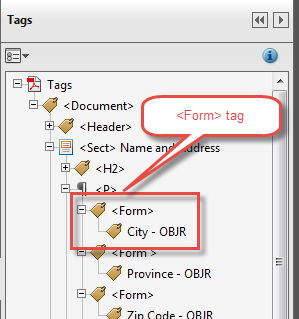
Form fields must be represented by tagged annotations in the tags tree
tagged annotation
tags pane > options menu > Find...
Find: Unmarked Annotations
Search Page or Search Document
For each unmarked annotation that is located, click the Tag Element button.
Form field nodes must be enclosed in `<Form> tags
<Form> tags
Select a sibling node for the <Form> tag.
tags pane > options menu > New Tag
Type: Form
Drag the tagged annotation into the new <Form>` tag.