Mounting a Mac OS Shared Directory on Windows
Sharing a Mac OS directory
Mac OS version Yosemite.[1]
- Apple menu > System Preferences > Sharing
- Here it's possible to change the computer's name.
- Take note of the name, especially how it's represented under the text input where it states "Computers on your local network can access shared folders at: [macname.local]". It's that token ending with
.localthat is needed to connect from Windows Explorer.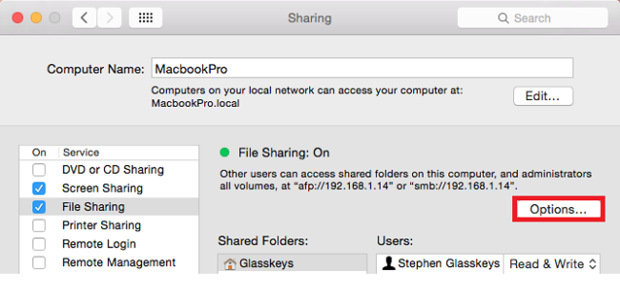
- Confirm that File Sharing is enabled.
- Click the Options button.
- Share files and folders using SMB: checked <<< Windows protocol
- Share files and folders using AFP: checked <<< Mac protocol
- Add the folder to share under Shared Folders
- Confirm that the correct user account has read and write privileges.

The mac will not appear under the Windows Network group in Windows Explorer.
Enter the name from the Mac Sharing settings (macname.local where macname is the specific name for the mac) in the address bar in Windows Explorer, e.g. \\macname.local\.
All of the shared folders on the mac should be listed in the Explorer window.
Right click on a shared folder and select Map Network Drive.