Acrobat XI PDF Accessibility Repair Workflow
Overview
Procedures and best practices for making existing PDF documents accessible.
Links
Link text and link element are enclosed in a `<Link>` tag.
Creating links
- Tools pane > Content Editing > Add or Edit Link
- Draw a rectangle around the link area.
- Link Type: invisible rectangle
- Link Action: Open a web page
- Next button
- Enter the link's url.
Tagging links
- A link element must be created for every link that is created manually.
- Tags pane > Options menu > Find...
- Find: Unmarked Annotations
- For each unmarked annotation that is found, click Tag Element.
- Tags pane > Options menu > Find...
- The tag element must be nested under the appropriate `<Link>
tag.Tags pane > locate the<Link>andLink OBJRnodes.Drag theLink OBJRnode under the<Link>` if it is not located there.
<P>
 |
 +-- {paragraph text...}
 |
 +-- <Link>
 |    |
 |    +-- Link OBJR
 |    |
 |    +-- {Link text...}
 |
 +-- {paragraph text...}
 |
Forms
See Forms Accessibility in Adobe Acrobat
Table of Contents
Tag structure
<TOC>
 |
 +-- <TOCI>
 |    |
 |    +-- <Reference>
 |         |
 |         +-- <Link>
 |              |
 |              +-- Tag: Link - OBJR
 |              +-- TOC item label
 |              +-- TOC item leader
 |              +-- TOC item page number
 +-- <TOCI>
 |
The elements of each table of contents line (label, leader, page number) should be broken out into separate tags to control the document flow.[1]
TOC item links
To add a link to a TOC item:
- Tools pane > Content Editing group > Add or Edit Link > draw link around item
- select link > right click: Properties (Ctrl+I) > Link Properties dialog > Actions tab
- Select Action: Go to page view
- Click Add button
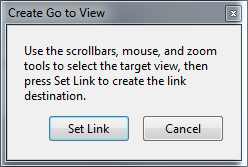
- Navigate to the target page, and optionally set the view size, e.g. "fit to page".

- Set Link button
- Alternatively, if you forget to navigate to the target page before clicking Set Link button.
- Return to Link Properties dialog > Actions tab > select action under Actions header > Edit button
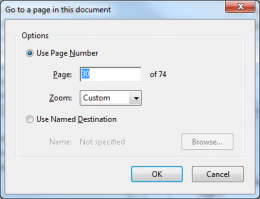
- Options Use Page Number
- Page: target page number
- Zoom: Inherit Zoom
- Return to Link Properties dialog > Actions tab > select action under Actions header > Edit button


Lists
<L>
 |
 +-- <LI>
 |    |
 |    +-- <Label>
 |    |
 |    +-- <LBody>
 |
 +-- <LI>
 |
 {etc...}
`<Label> tags are only strictly necessary for ordered lists (e.g. 1. 2. 3..., i. ii. iii..., a. b. c...). Bullet points can be marked as artifacts if the list tags need to be created manually. But there is no harm done if bullets have been automatically put in <Label> tags.
<Label> tags can be omitted when there is no content to put in the tag. <L> > <LI> > <LBody>` tags should be present for every list item.
Nested lists
TK
List items that contain multiple paragraphs
TK
Footnotes
It's not possible in the PDF 1.7 spec to target elements with links. The best that can be done is to target a page within the document. This might change with PDF 2.0.
Tag structure
The superscript element referencing a footnote should be tagged `<Reference>.
The footnote content should be tagged <Note>.
In the tags pane, the <Note> element should follow immediately after the <Reference> tag. This is not ideal, but it's the best option considering the PDF 1.7 spec. This way the footnote has some context. Any other placement will leave it out of context relative to the <Reference>` element.[2]
`<Note>` tags must have unique ids. (with the tag selected > right click > Properties (Ctrl+I) > Object Properties modal dialog > Tag tab > ID)
<document>
 |
 +-<P> {Paragraph text}
 |  |
 |  +-<Reference> {superscript}
 |  |
 |  +-<Note> {Footnote text}
 |  |
 |  +-{Remaining paragraph text}
 |
 + <...>
Bibliography
Use the `<BibEntry>` tag for bibliography entries.
Images, charts and formulas
Images
TK: Assign alternate text to the image, or mark it as an artifact.
Charts
TK: Combine all tagged elements in the chart into one `<Figure> tag. Assign alternate text for that <Figure>` tag.
Formulas
The PDF tag structure doesn't full support markup of formulas and equations in an accessible manner. The reader isn't capable of interpreting mathematical formulas for users of assistive technology.
With that in mind, formulas and equations should be written out in the shortest and most concise manner in the alternate text enclosed in a `<Formula>` tag.[3]
Splitting a file between multiple teams
Assigning portions of the PDF document
A PDF can be broken down into page ranges which then can be worked on by multiple teams.
- It's best to split the page ranges based on the content of the document.
- Find a logical location for the split, e.g. the end of an `<H2>
block.
- Find a logical location for the split, e.g. the end of an `<H2>
- Open the file and delete the pages that are not in the assigned page range. This will reduce the time it takes for Acrobat to move elements around and save changes.
Table of contents can be tagged with<TOC>and<TOCI>`, but the actual links to locations in the document can only be added after the document is stitched back together.
Stitching the PDF file back together
- First make sure that tags have been added to all the content in all of the portions of the document to be stitched back together. Automated tagging can only be applied to a whole document; any untagged content will have to be tagged manually.
Either open Acrobat Pro and select Combine files into PDF, or select the documents to combine in Explorer, right click and select Combine Files in Acrobat...At the prompt click the Combine button.- TK: How does Acrobat determine the order in which to combine the documents? Is it by file name? That seems to work so far...
- Combining files in at least one case did not carry over existing tags from one of the documents. Try "inserting pages" instead.
- Combine files by inserting pages.
- Open the first of the documents to be combined in Acrobat Pro.
- Page Thumbnails pane > right click (without any pages selected) > Insert Pages > From File... (Shift+Ctrl+I) > select the next file in the sequence
- Location: After
- Page: Last
- Confirm that the tags from both files have been included in the tags tree.
- If the page numbering does not start at 0 (e.g. there are sections numbered i, ii, iii, ...), the page numbering will have to be adjusted to match the original document.
- Navigation Pane > Page Thumbnails > select page range > right click > Number Pages...
- Numbering: Begin New Section
- Style: 1, 2, 3... or i, ii, iii..., etc.
- Start: Starting number (if not the default (1))[4]
- Navigation Pane > Page Thumbnails > select page range > right click > Number Pages...
Accessibility Checker errors
Page Content
Tagged content - failed
See Fixing "Tagged Content" Accessibility Errors in Acrobat XI Pro
Tagged annotations - failed
See Links
Tab order - failed
Accessibility Checker panel > Page Content > Tab Order > right click > Fix[5]
See also
Wiki articles
- Cleaning Up Text Artifacts In PDF Accessibility Tags
- Fixing "Tagged Content" Accessibility Errors in Acrobat XI Pro
- Validating PDF Accessibility Compliance
- Tagging a PDF Split Between Multiple Compliance Operators
External referneces
- Acrobat XI Pro PDF Accessibility Repair Workflow (PDF:adobe.com)
- Acrobat Standards & Accessibility Forum (Adobe Forums)
- Acrobat X Pro Standard PDF Tags (help.adobe.com)
Notes
- ↑ Creating Accessible PDFs with Adobe Acrobat Professional, US Dept of Veteran Affairs
- ↑ Thread: making footnotes accessible in PDF documents, WebAIM
- ↑ Adobe Acrobat PDF Best Practices for equations, webaccessibility.com
- ↑ About Tags in Combined PDFs, Adobe Acrobat X Pro documentation
- ↑ Using the Acrobat XI Pro Accessibility Checker, page 11 - Adobe Acrobat XI Accessibilit