Adding A 2nd Wireless Router To A LAN
Overview[edit]
Instructions on how to set up a 2nd wireless router to extend the wireless range of the home LAN.
Process[edit]
Accessing the wireless router[edit]
- Reset the wireless router to the factory settings
- Connect the wireless router to a computer with an ethernet cable.
- Plug the ethernet cable into one of the 4 LAN ports on the router. Don't plug it into the WAN port.
- Power on the router (and the computer, of course).
- Connect to the router using the default IP address
For Medialink MWN-WAPR300N this is http://192.168.8.1 (The manual shows two conflicting addresses.)
Configuring the router[edit]
- Change the SSID and password to match the main wireless router.
- Change the following Wireless Settings to match the main wireless router:
Wireless Settings > Wireless Basic Settings- Network Mode
- Channel
- Extension Channel
- Change the following Wireless Security settings to match the main wireless router:
Wireless Settings > Wireless Security- Security Mode
- Passphrase
- Change the router's IP
Advanced Settings > LAN Settings- Change it to any available address on the main router, e.g. 192.168.123.122
- Save and the router will reboot.
- Plug the 2nd wireless router into the LAN.
- Ethernet cable to one of the 4 LAN ports on the router, not the WAN port.
- When connecting to the router through the web interface an error message will appear stating that there is no ethernet cable connected to the router's WAN port. It's safe to ignore this message.
- At this point devices should be able to connect to the wireless through the 2nd router.
- Disable DHCP
Remember it's necessary to reconnect to the router's web interface at this point using the new IP address.- DHCP Server > DHCP Server > Enable > uncheck
Troubleshooting[edit]
Devices hang trying to connect to the "medialink" wifi network[edit]
Check to make sure that the ethernet cable going to the wireless router is plugged into a LAN port and not the WAN port.
-
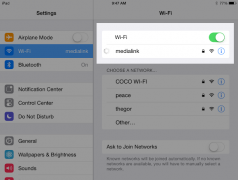
Wi-Fi settings on the iPad. Cannot connect
-
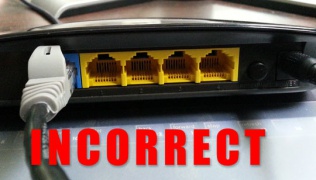
plugged into WAN: incorrect
-
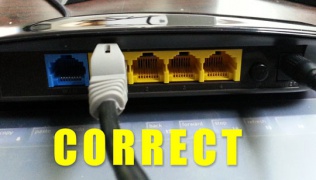
plugged into LAN: correct


